Joining a chat
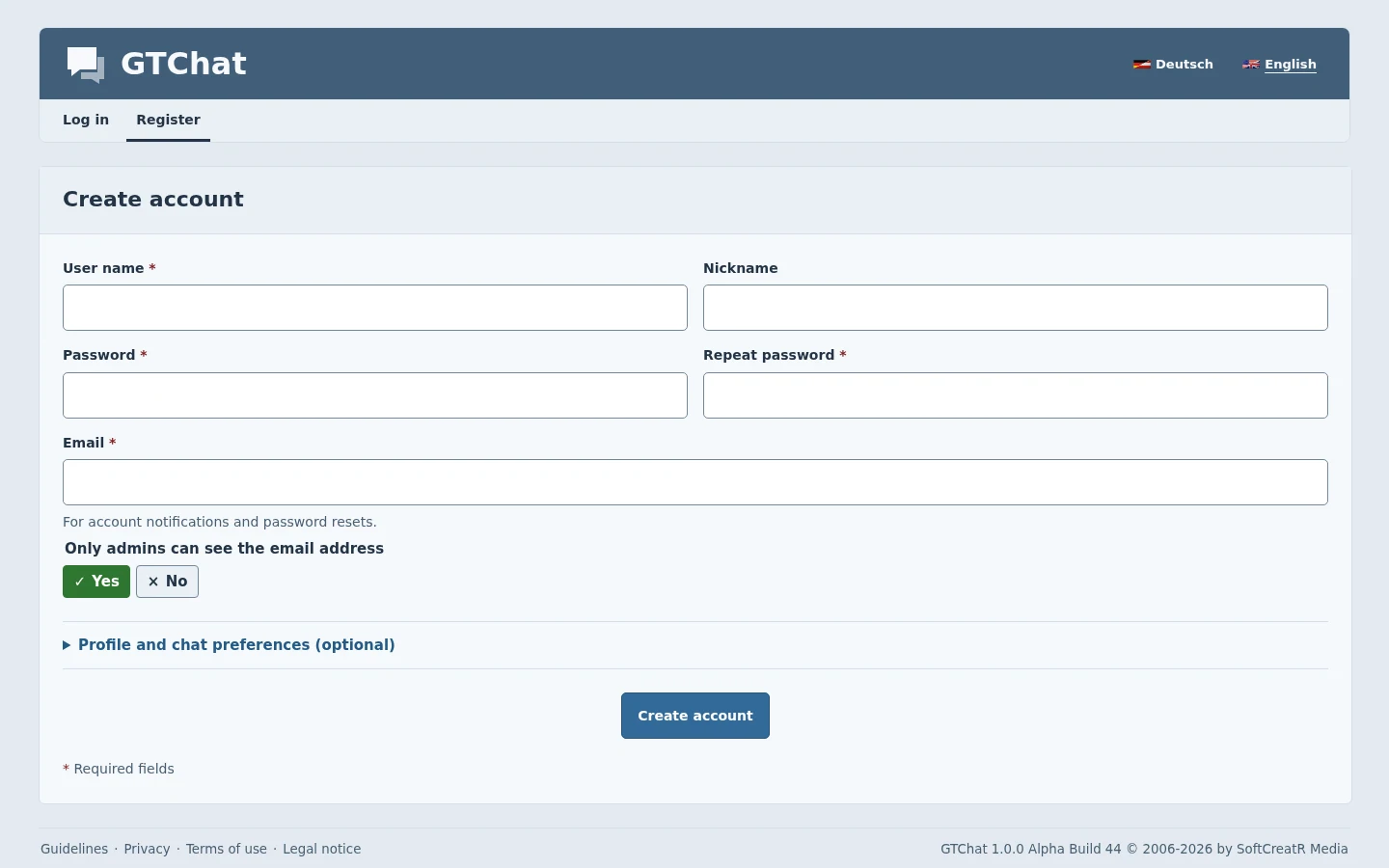
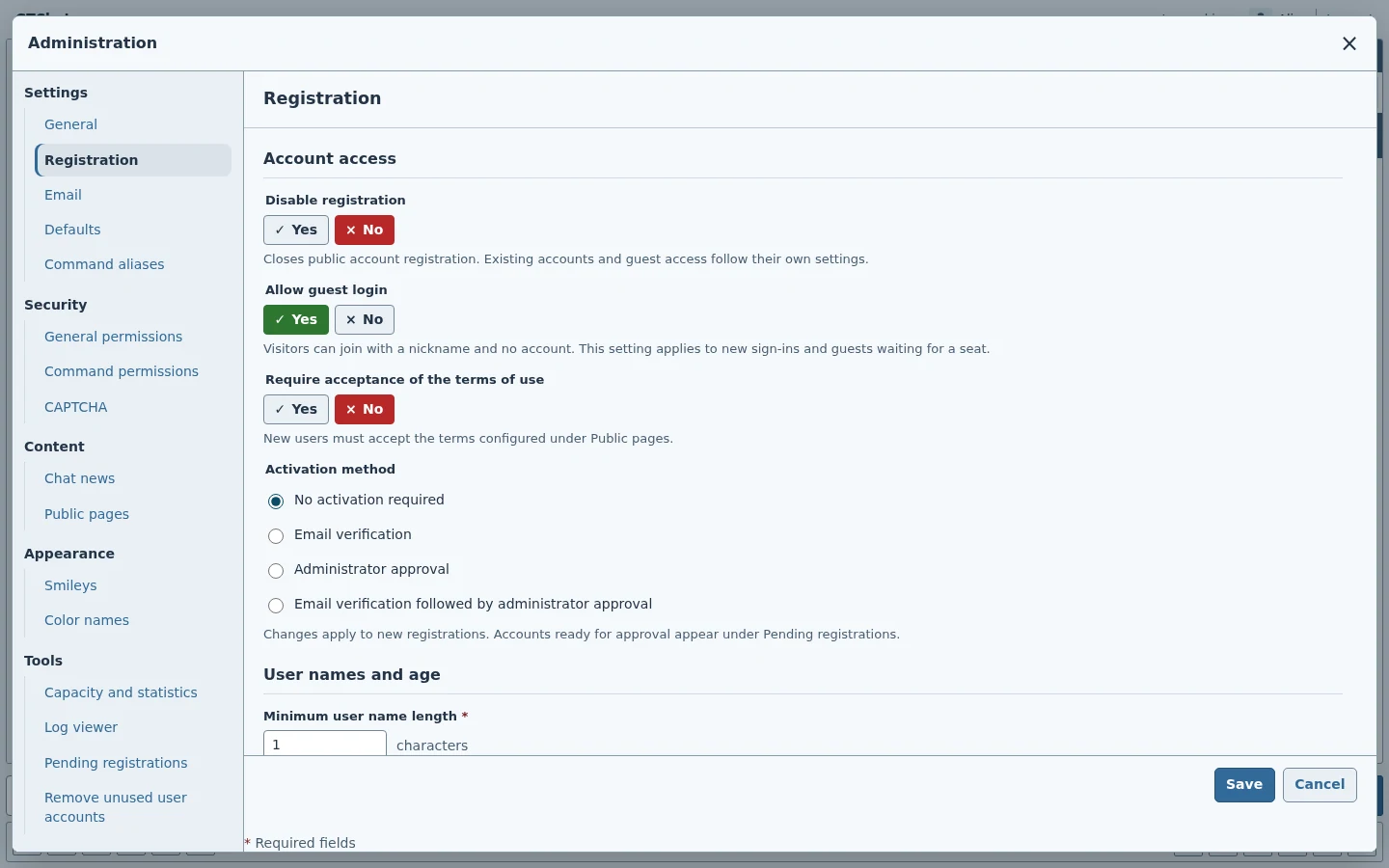
Open the public sign-in page and select a language if needed. Register if the site requires an account. An operator may require acceptance of the terms or impose a minimum age. Depending on the selected activation method, the account can require email confirmation, administrator approval, or both.
Use the password recovery link on the sign-in form to request a new password. For sites that allow guest sign-in, use a nickname that does not belong to a registered account. When the site is at capacity, the waiting room checks for a released slot.
Rooms, members, and messages
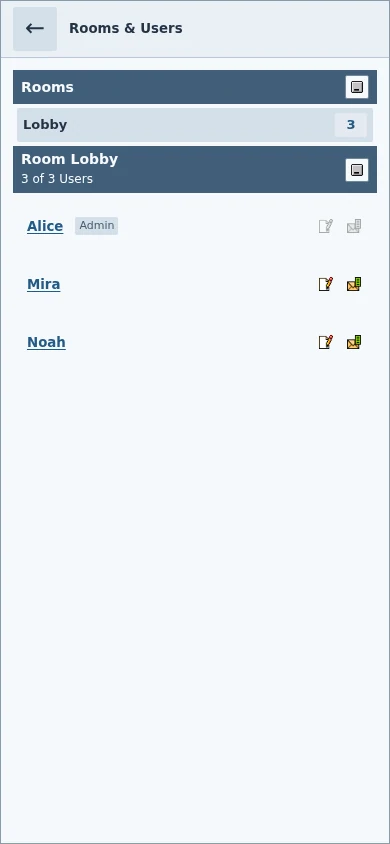
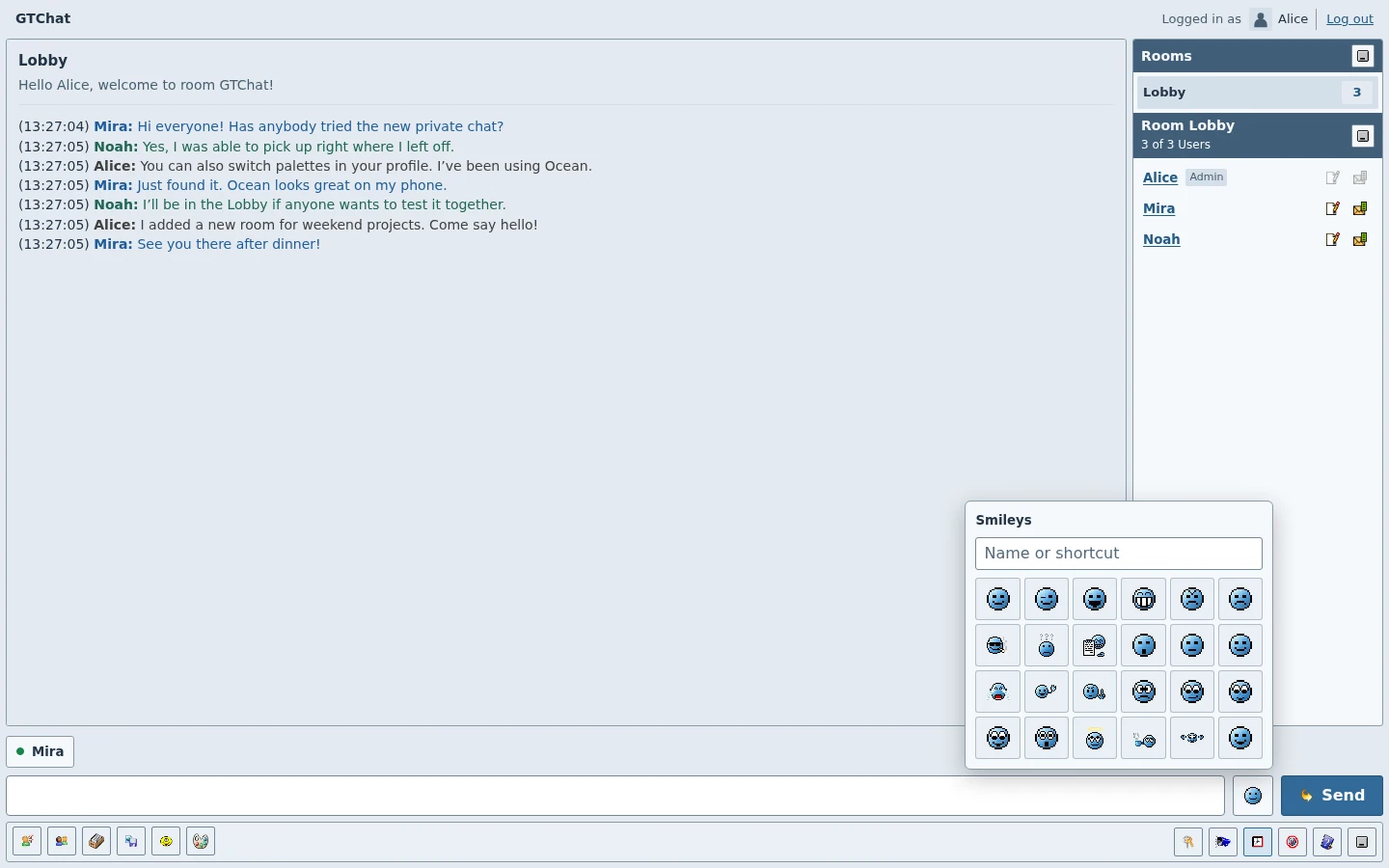
Pick a room from the Rooms list. The Members list shows participants in the current room. On mobile, select the room name in the header to open both lists. Type in the composer and press Enter or select Send. The smiley button opens the catalogue, and choosing a smiley inserts it into the draft.
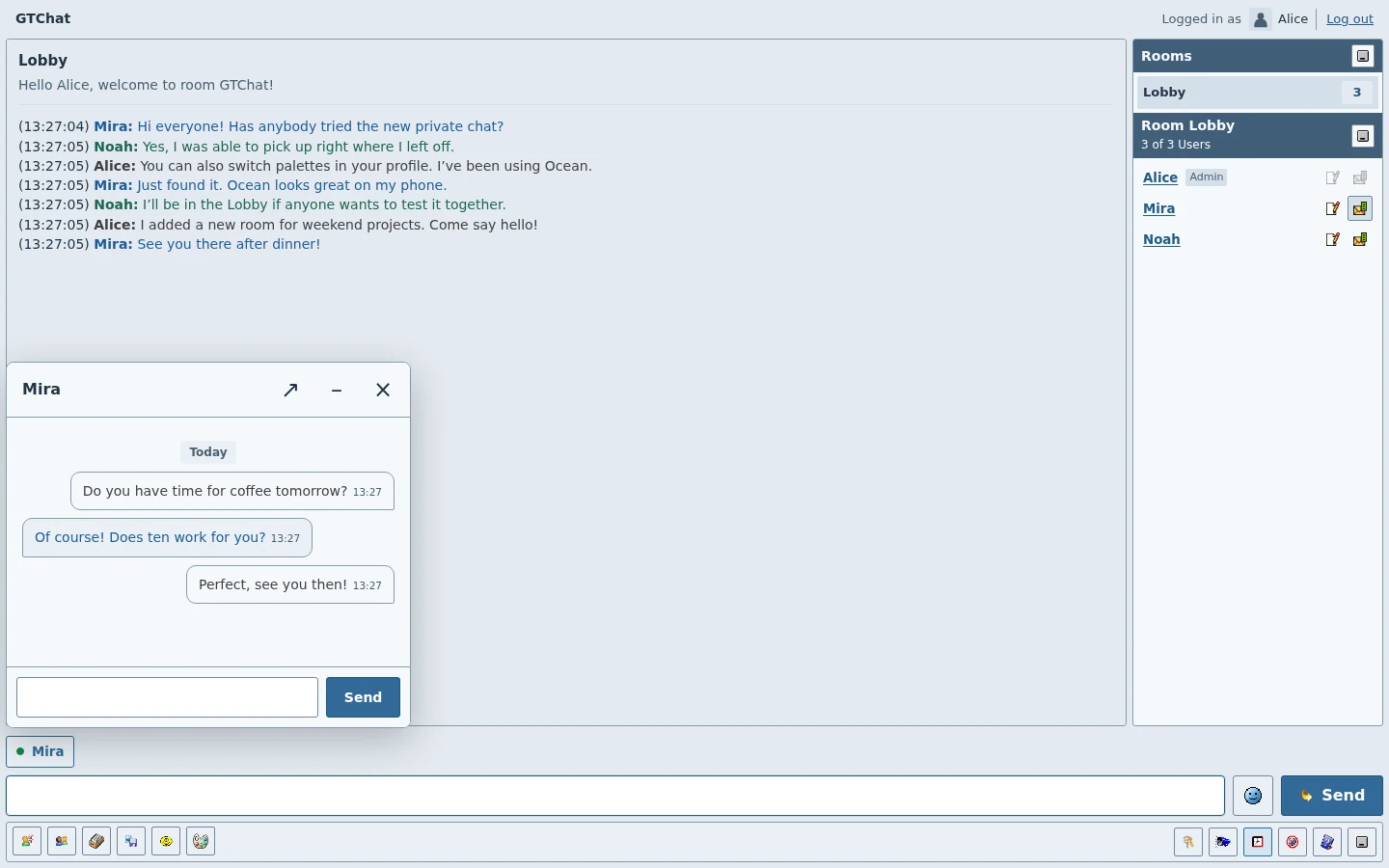
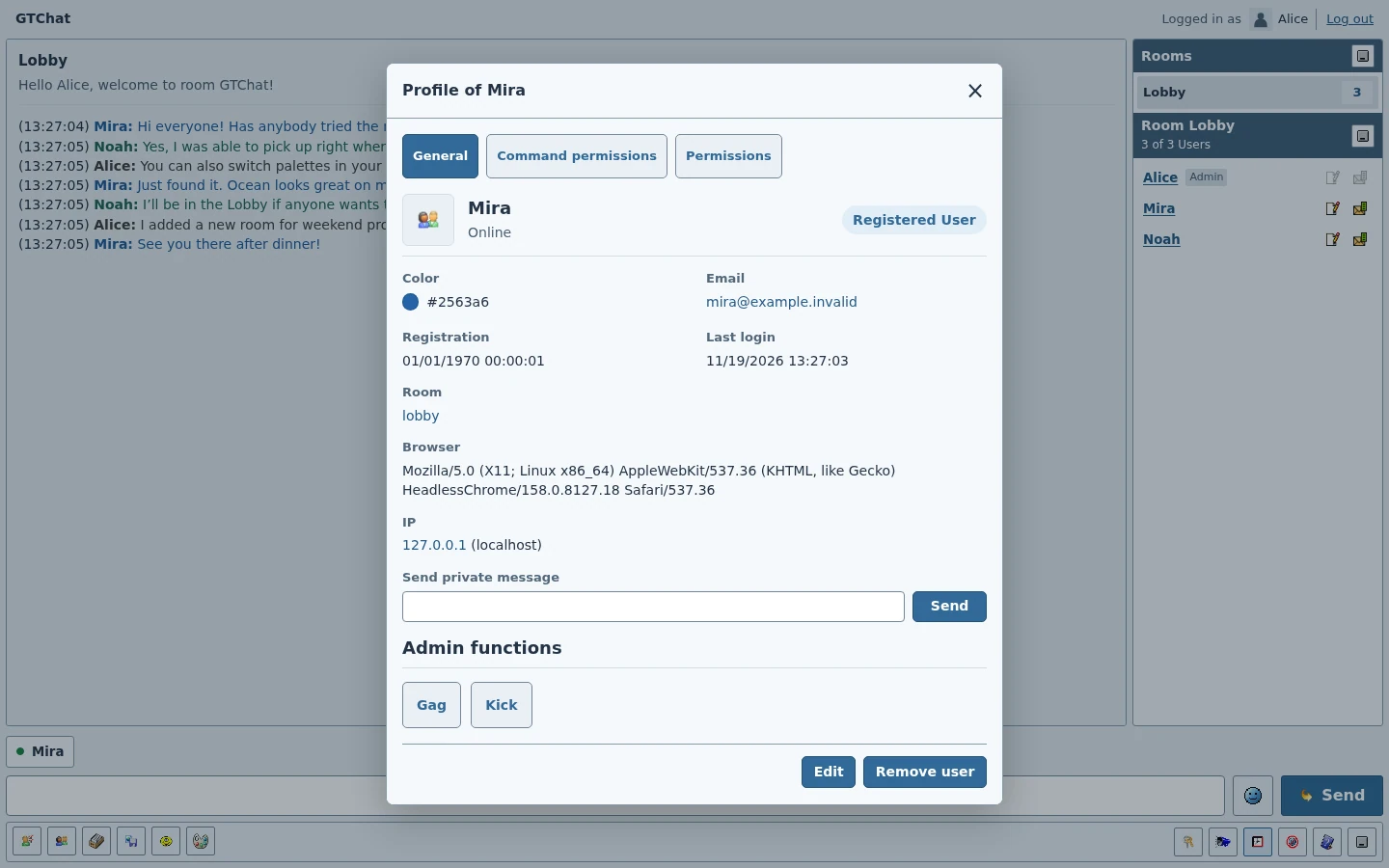
Use the private-message action beside a member to open a separate conversation. Its tab shows presence and unread state. Minimizing keeps a conversation available in the tab strip. Closing it removes the visible tab until a new message arrives or you open it again. Registered accounts can continue the conversation across sign-ins.
Profile and appearance
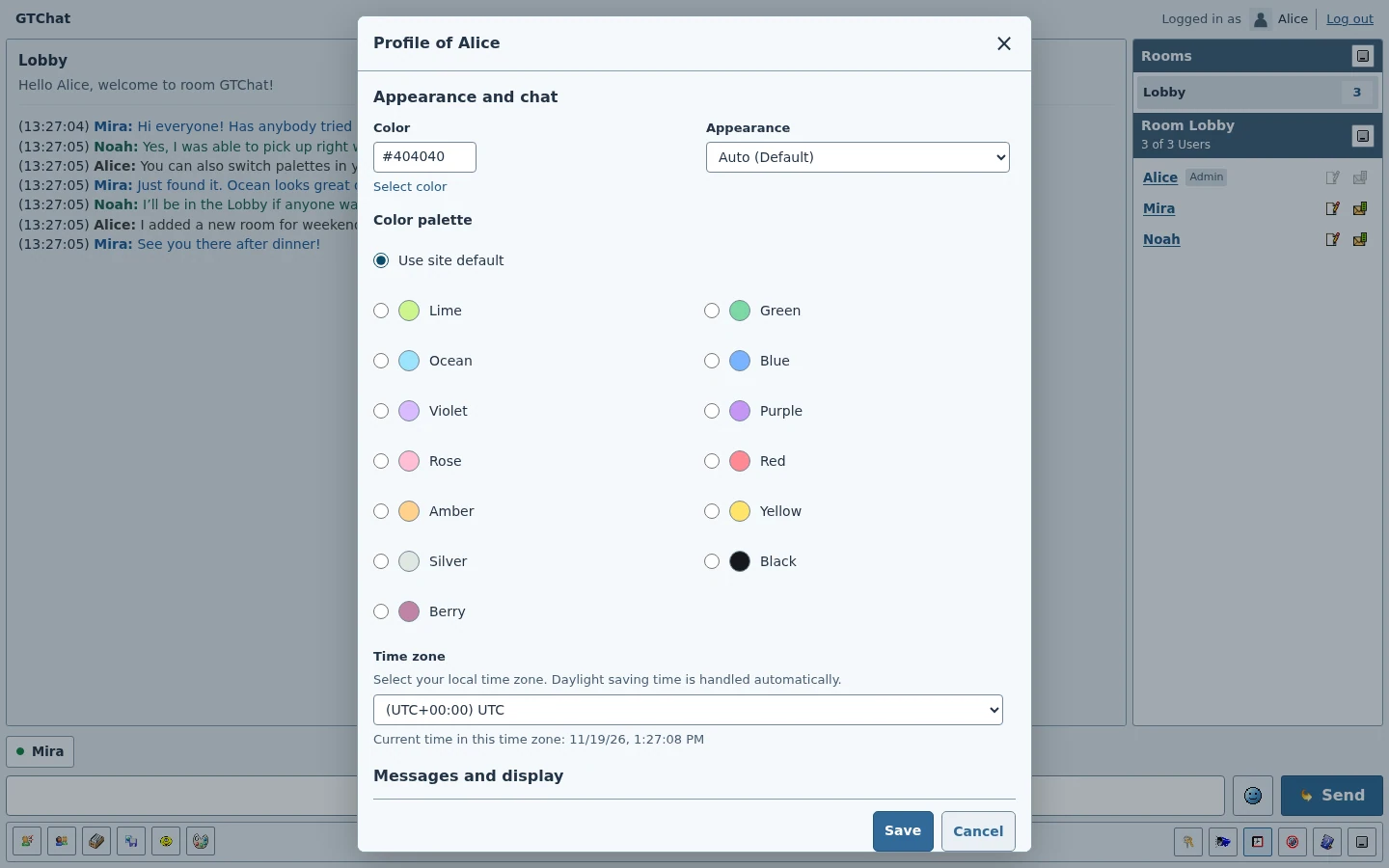
Open your profile from the chat header and choose Edit. The profile editor provides personal fields, a time zone, privacy options, and message display settings. Select an appearance and a color palette. The default palette follows the site setting. An email address change is applied after the new address is verified.
Configure a community
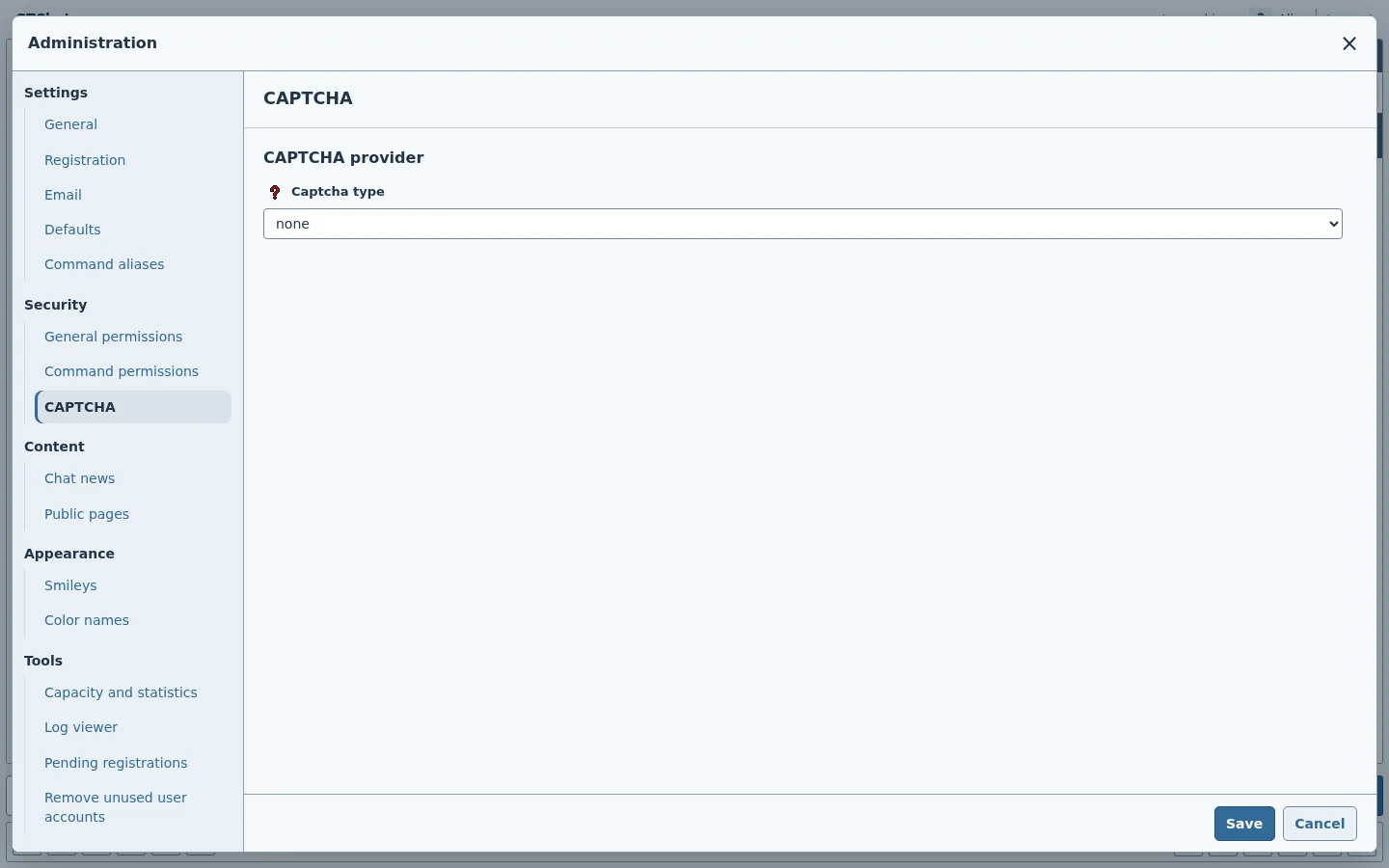
Open Administration from the authenticated toolbar. Start with General, then review Registration, CAPTCHA, email, permissions, and public pages. Set public rules and terms before sharing the installation. Create and test roles with a separate member account before changing access for a live community.
Choose the activation method before inviting members. Releases requiring administrator approval show a notice in chat when a registration awaits action. The pending registrations view provides approval and resend controls where applicable. Test the mail transport before relying on email confirmation or recovery.
Publish news and look after capacity
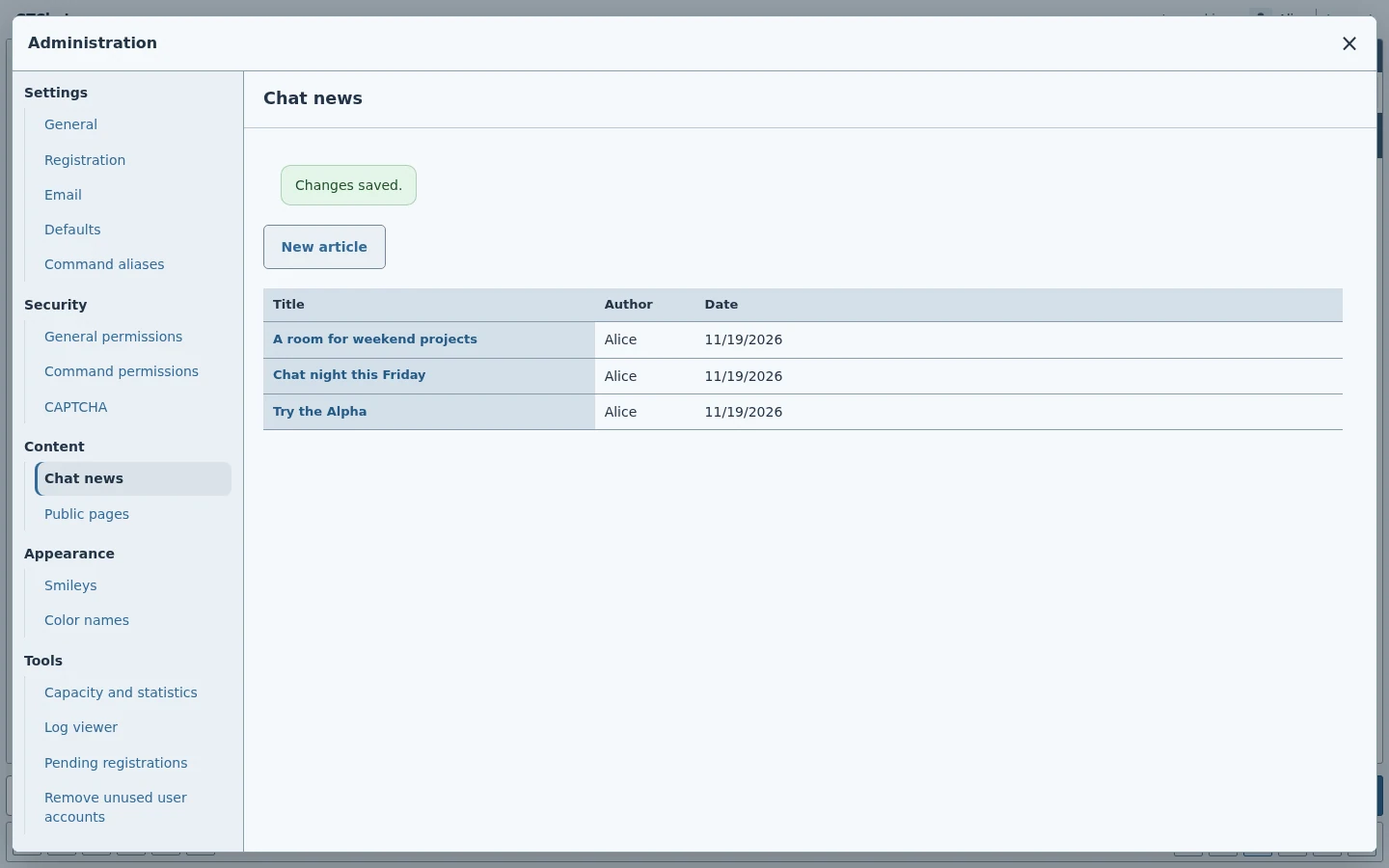
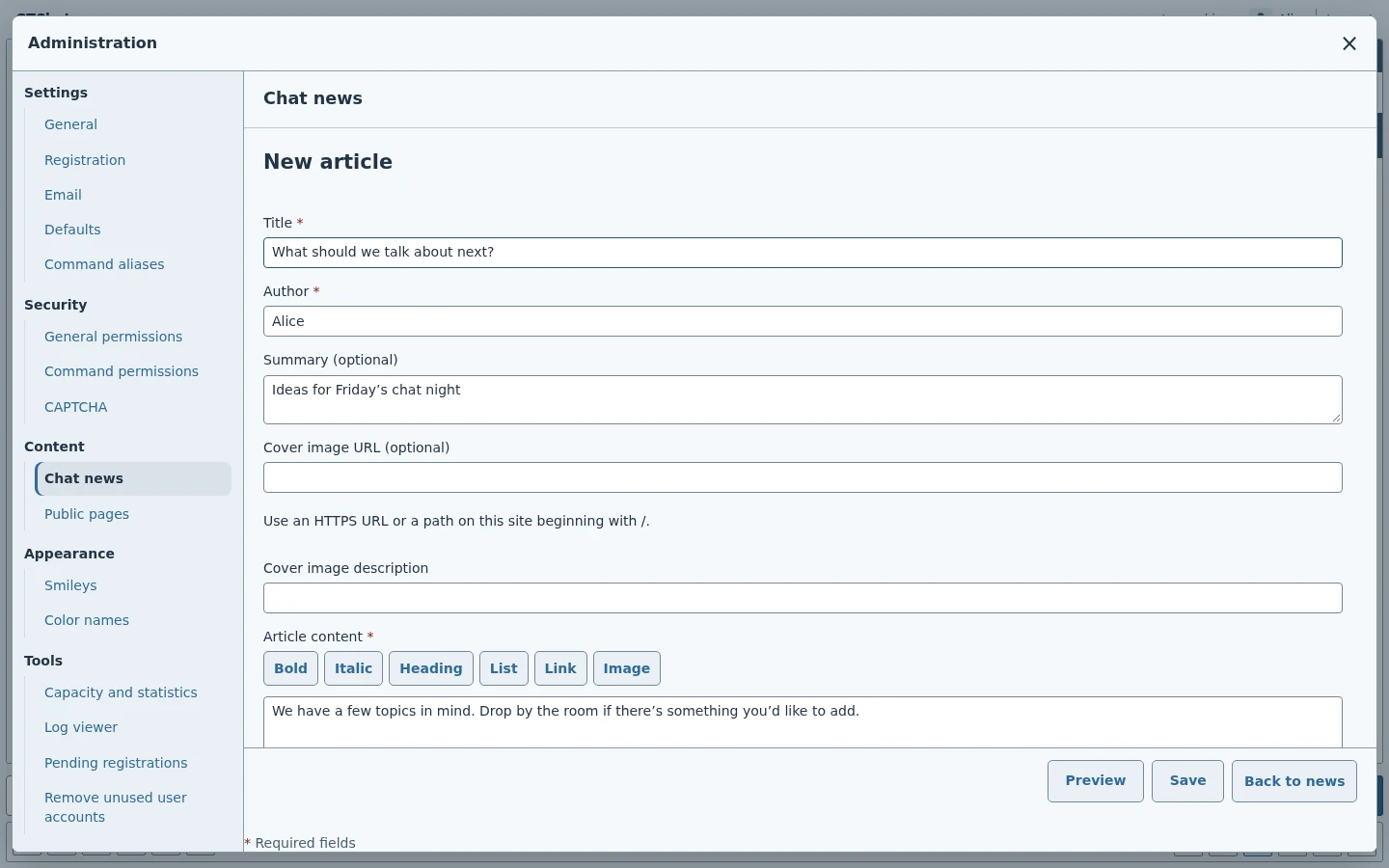
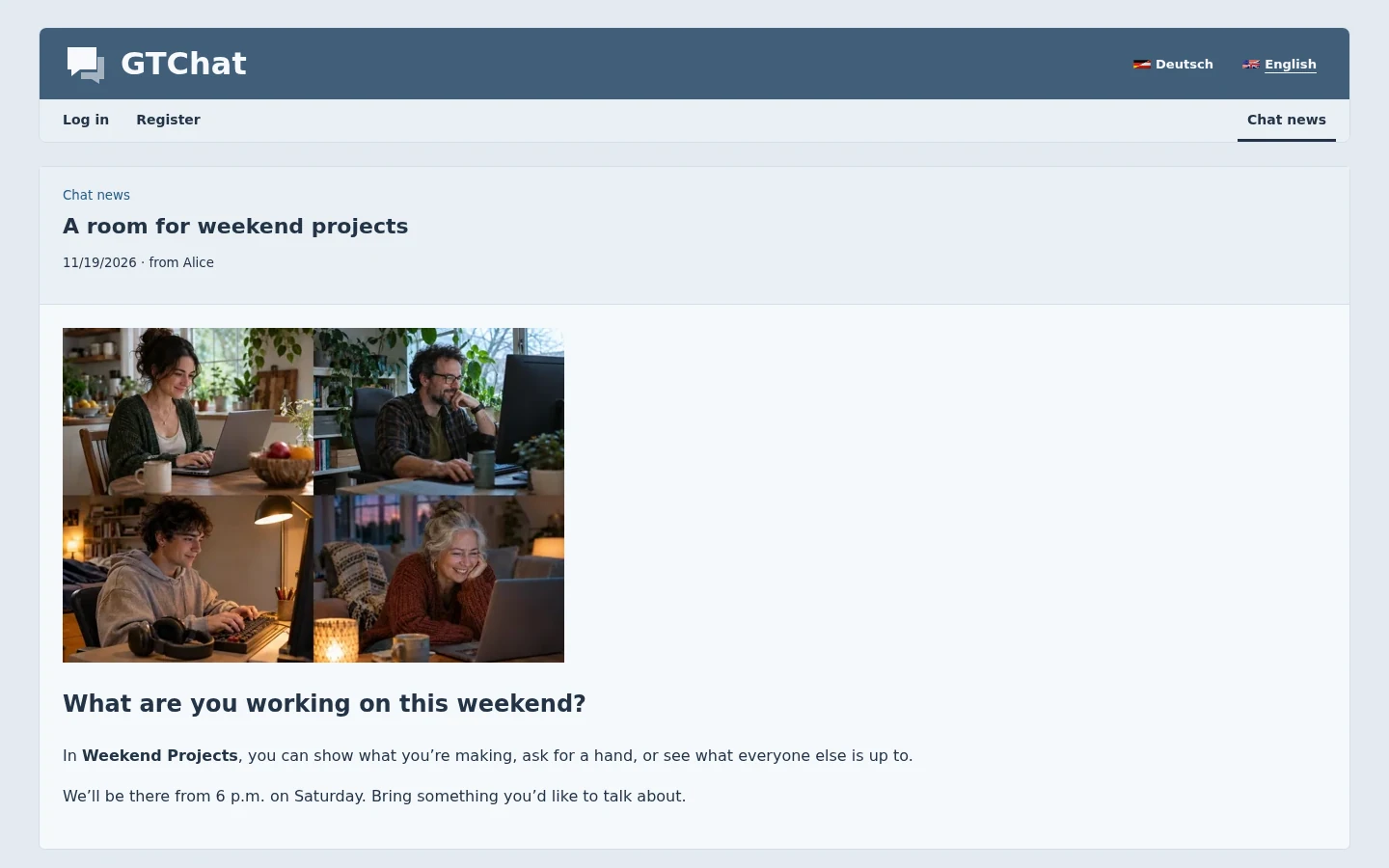
Create news entries under Chat news. Each entry can have a title, author, formatted content, and images. Published entries appear on the public site. Rooms and permissions control who can join and who can perform moderation actions.
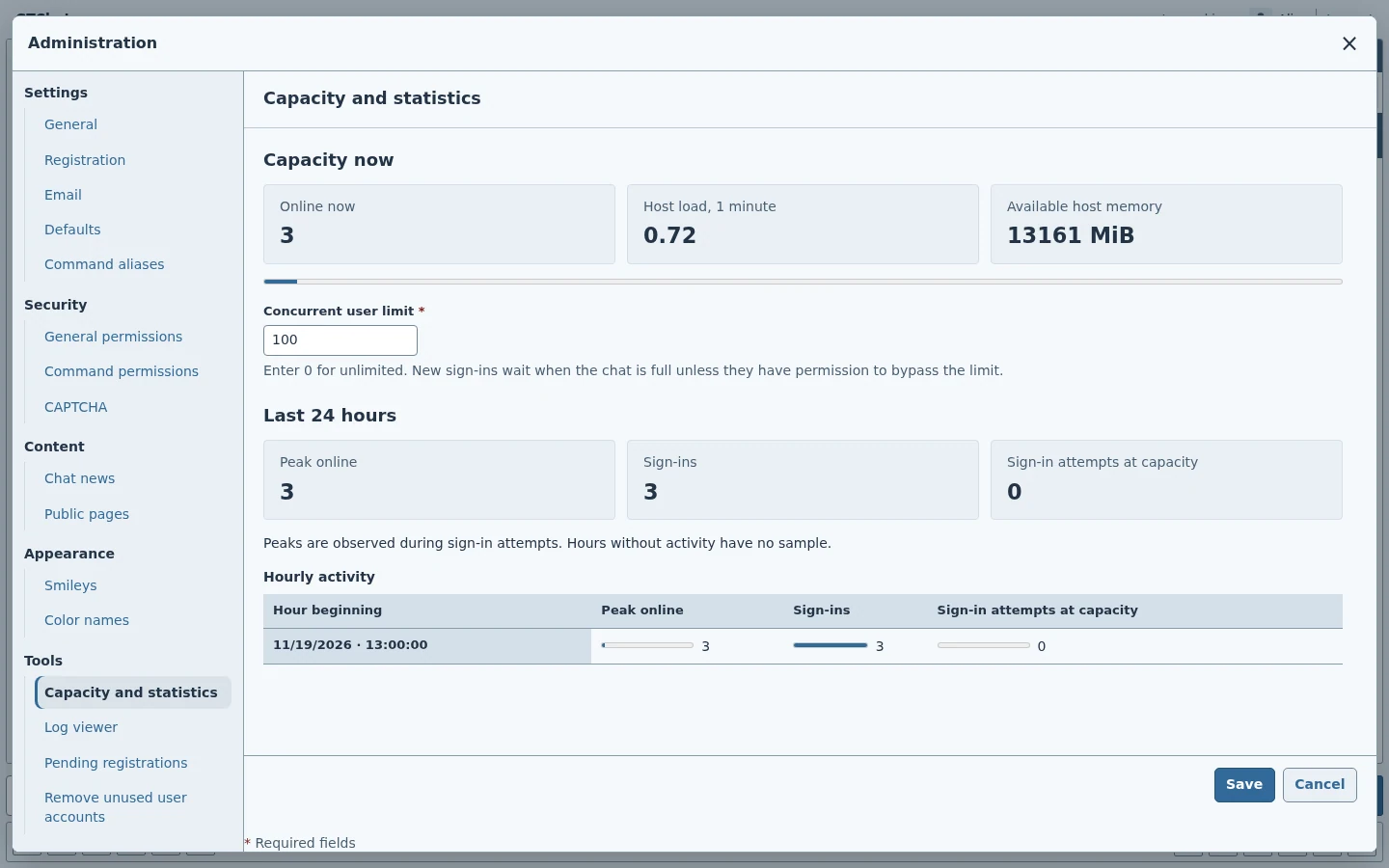
Use Capacity and statistics to observe activity when you change the seat limit. Review the logs for operational or moderation events and coordinate regular backups with the server operator.